How To Install IPTV On A Firestick In 2026
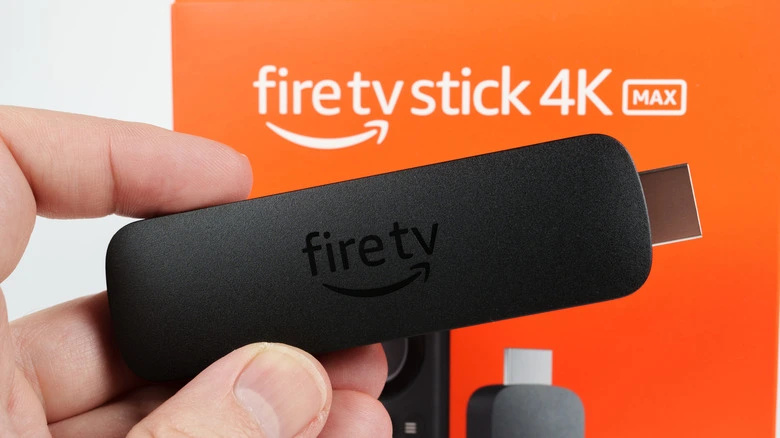
You bought an Amazon Fire TV device. You want live TV, movies, and sports in one place. IPTV apps handle this job. Setup takes about 10 minutes.
Best IPTV Apps For Firestick And Android Devices
Use one app. Keep setup simple.
Top choices in 2026:
• TiviMate
• IMPlayer
• IPTV Smarters Pro
Key differences:
• TiviMate runs fast and handles large channel lists
• IMPlayer offers strong customization
• IPTV Smarters Pro works free but feels basic
Premium versions matter. Free versions limit features like VOD, recording, and multi-screen.
Typical pricing:
• TiviMate: about $10 per year or $30 lifetime
• IMPlayer: about $20 one-time
• IPTV Smarters Pro: free version available
If your provider offers more than 10,000 channels, pick TiviMate or IMPlayer. Performance stays stable.
Step 1. Enable Developer Options On Your Firestick
You need this once.
Follow these steps:
-
Go to Settings
-
Select My Fire TV
-
Select About
-
Click your device name 7 times
-
You will see Developer Options enabled
Next:
-
Open Developer Options
-
Turn ON Apps from Unknown Sources
This step allows third-party apps.
Step 2. Install The Downloader App
Downloader handles file installation.
Steps:
-
Go to the Search icon
-
Type Downloader
-
Select the orange Downloader app
-
Click Download
After installation, return to the home screen.
Step 3. Install Your IPTV App
Open Downloader.
Then:
-
Enter a download code or URL from your IPTV provider
-
Press Go
-
Wait for the file to download
-
Select Install
-
Open the app
Most providers give login details in this format:
• Username
• Password
• Server URL
Enter those details inside the app under:
XC API
Xtream Codes API
Setup completes in under 2 minutes.
Performance Tips
Use these settings to reduce buffering:
• Use Ethernet instead of Wi-Fi when possible
• Restart your router once per week
• Clear app cache every month
• Use a device with at least 2 GB RAM
Devices that run IPTV smoothly:
• Amazon Fire TV Stick 4K
• Fire TV Stick 4K Max
• Fire TV Cube
Common Problems And Fixes
App freezes while browsing channels
Cause:
Large playlist or weak device
Fix:
Switch to TiviMate or IMPlayer
Restart the device
Reduce channel categories
Buffering during playback
Cause:
Slow internet or overloaded server
Fix:
Minimum speeds:
• 25 Mbps for HD
• 50 Mbps for 4K
Login fails
Cause:
Wrong server URL or expired subscription
Fix:
Check credentials from your provider
Restart the app
Important Practical Note
IPTV apps are legal. Content sources vary by provider. Always confirm your service rights in your region.
If you want, tell me:
• Your exact Firestick model
• Your internet speed
• Whether you use Wi-Fi or Ethernet
I will recommend the best settings for your setup.